Charge rules
Each space carries its own list of charges, so one site can mix a flat-rent bay, a stall paying a share of its takings, and a unit with a power meter.
Where charges are set
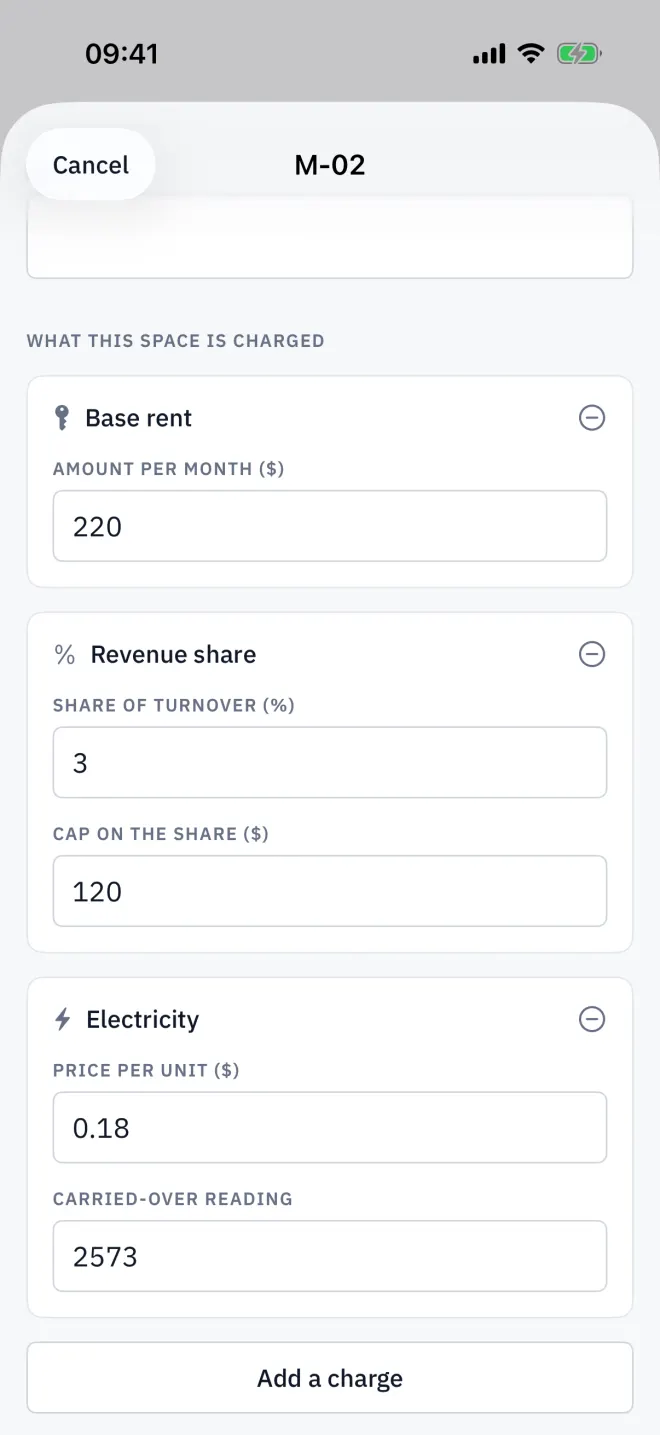
Open the space, tap Edit space, and look under What this space is charged. Each line is a card with its own fields; tap Add a charge for another line, or the minus button to remove one.
Base rent and fixed extras
Base rent is a fixed Amount per month billed every period. Add a charge also offers fixed lines for Internet, Service fee, Cleaning and Security; each starts at zero until you enter an amount.
Revenue share with a cap
Set the Share of turnover (%) and, if you want a ceiling, the Cap on the share. Each period the tenant's turnover is declared on the space screen, and the line is the percentage of it, stopped at the cap. For example, 8% of 50,000 is 4,000; with a 3,000 cap the line is 3,000. Leave the cap empty for no cap.
Metered electricity and water
A metered line has a Price per unit and a Carried-over reading — the meter's number when this tenancy's billing starts. Each period you record the new reading and Letnook charges the difference times the price. Add a charge adds Electricity or Water as metered lines.
Late fees and discounts
From the space screen, More actions → Add a late fee or Give a discount adds a one-off amount. It applies to this period only and drops off when the period is closed.
New spaces and their defaults
A new parking bay or storage unit starts with base rent only. In most markets a new market stall also starts with a 3% revenue share and metered electricity, so it shows Not billed yet until its first reading and turnover are in — or until you remove those lines. Changing a space's Kind replaces its charges with the new kind's defaults.
Tax
If you set a Tax rate in Settings → Site, the bill adds tax on the taxable lines. A deposit is never taxed, and a discount lowers the taxable amount.
Read next
Readings and turnover
Enter the electricity or water meter's number in Letnook; it charges the difference at your rate. Declare turnover for a revenue share. Lower readings are refused.
NextBills and receipts
Open a Letnook space's Bill / receipt to see every charge line, tax and the total, how to pay, and — once paid — the date, method and bank reference. Share it as an image.
NextLetting a space
Put a tenant in a Letnook space: open it on the plan, tap Edit space, add the tenant name and contact, check what the space is charged, and save.