Recording a payment
The payment sheet shows the tenant how to pay the exact amount, and records the payment once you have seen the money arrive.
Take a payment
-
1Open
Open the payment sheet
Tap Record payment on the space, or a row in Collect.
-
2Method
Pick the method
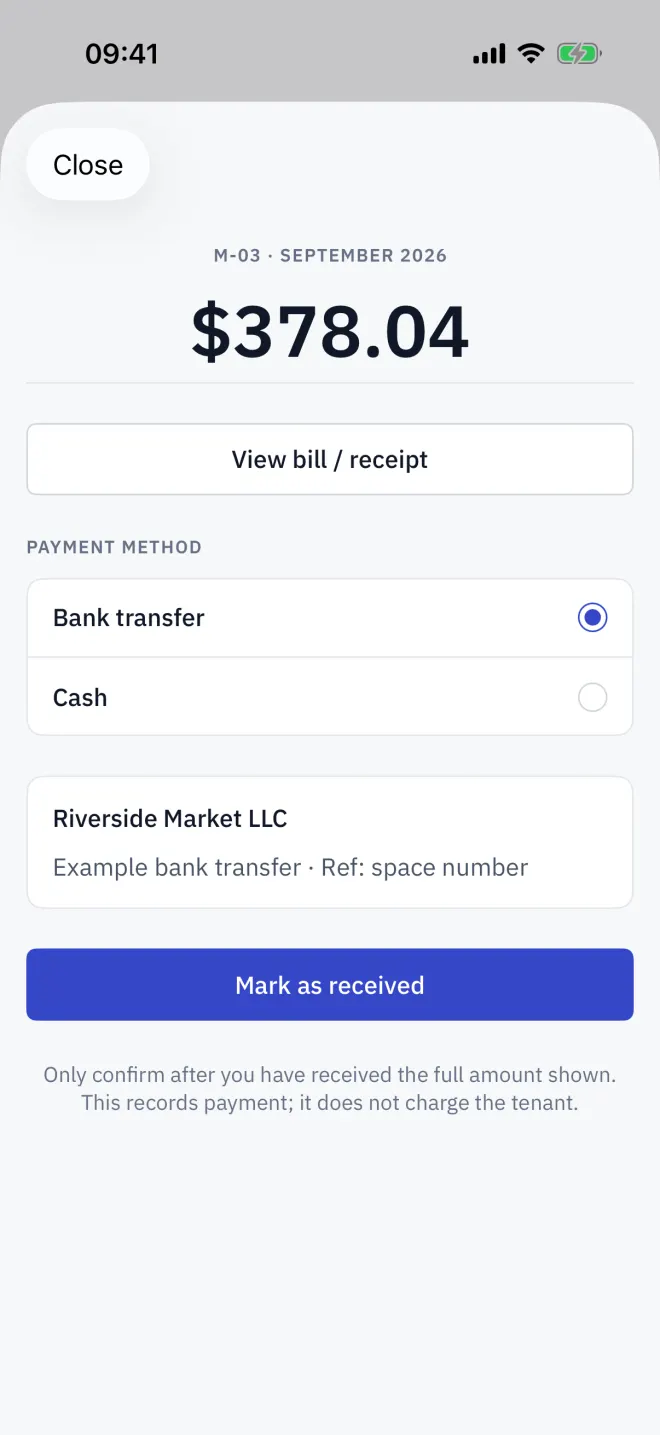
Under Payment method, choose how the tenant is paying. Methods you have not set up are greyed out.
-
3Show
Show the code
Turn the phone to the tenant. A payment QR already holds the exact amount, so the payer cannot mistype it.
-
4Confirm
Mark it received
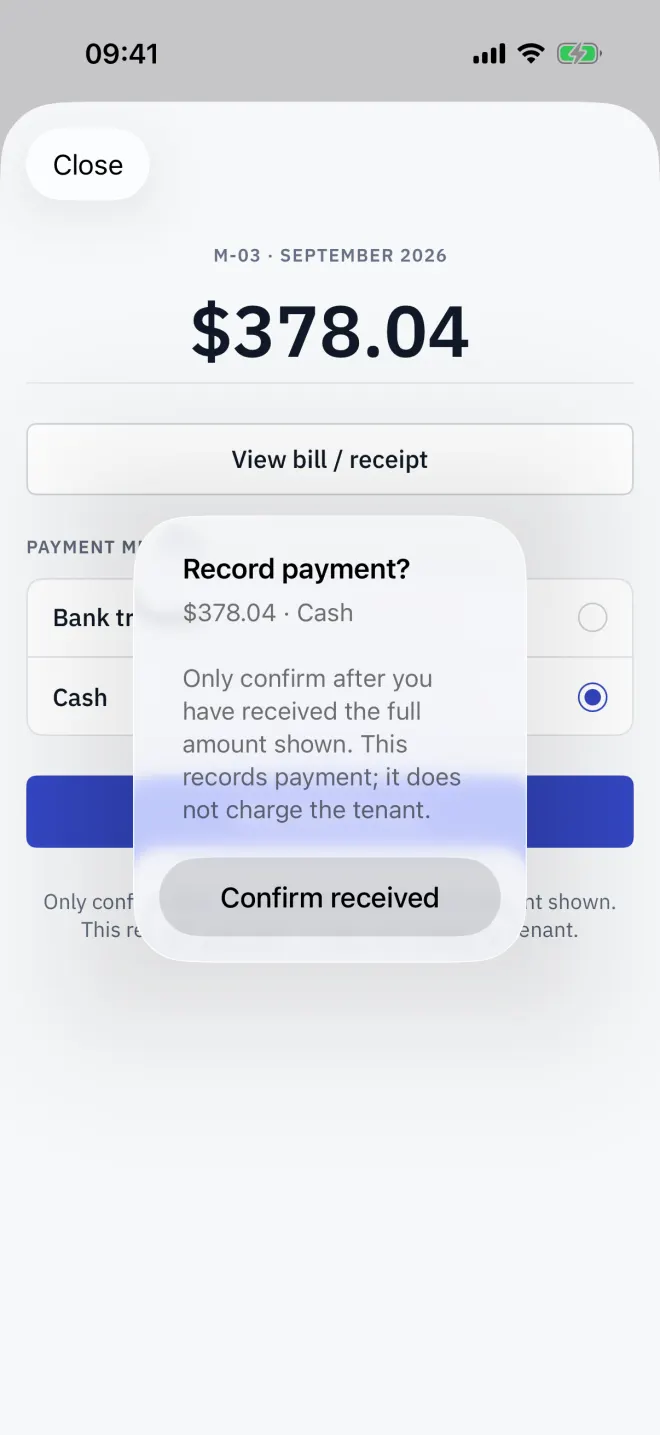
Check your banking app, then tap Mark as received (or Received in cash) and Confirm received. The space turns Paid.
Which methods your market offers
| Market | Methods |
|---|---|
| Thailand | PromptPay, bank transfer, My own QR, cash |
| Indonesia | QRIS, bank transfer, My own QR, cash |
| Brazil | Pix, bank transfer, My own QR, cash |
| Vietnam | VietQR, bank transfer, My own QR, cash |
| Cambodia | KHQR (Bakong), bank transfer, My own QR, cash |
| Eurozone, UAE | Bank transfer, My own QR, cash |
| US, UK, Canada | Bank transfer, cash |
My own QR shows the receiving code your bank gave you. It cannot carry the amount, so tell the payer what to enter. Bank transfer shows your payee name and bank details.
Cash
Choose Cash and tap Received in cash once the money is in your hand.
Set up your methods
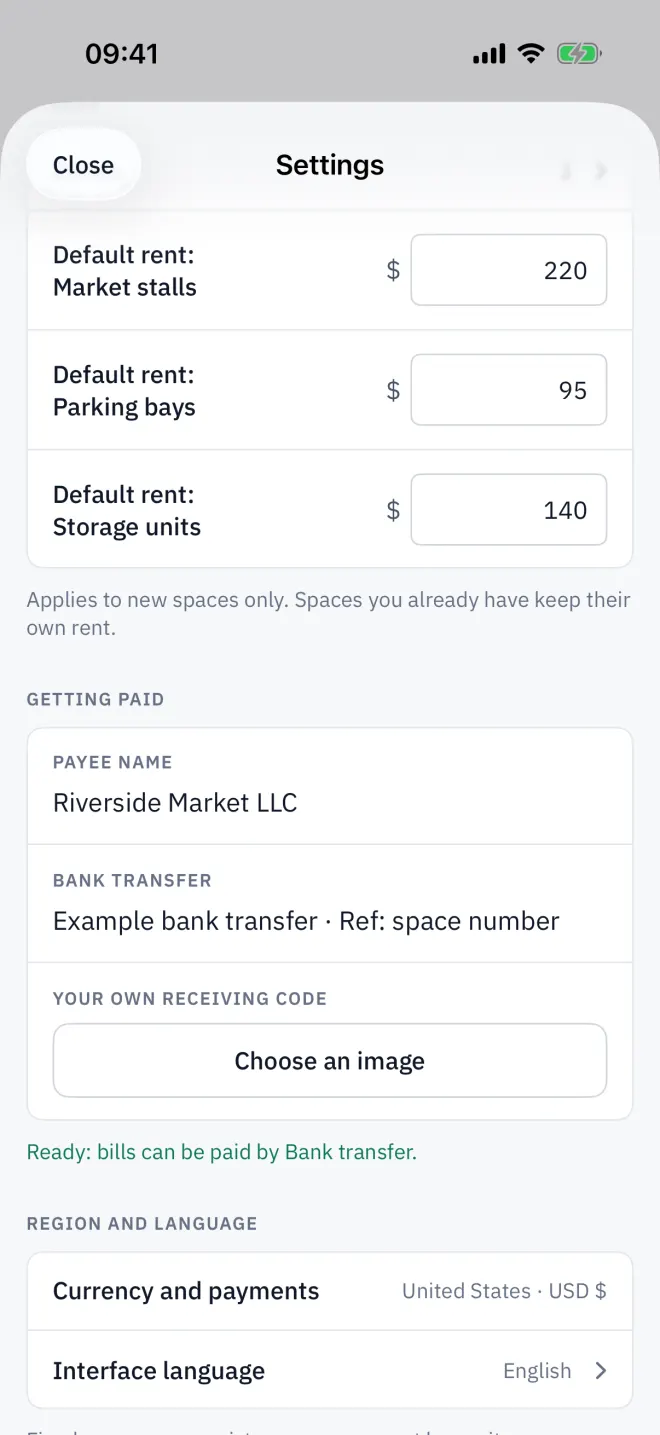
Fill in Settings → Getting paid: the Payee name, your ID for each method, or an image of Your own receiving code. A line under the group says which methods are ready.
Recorded the wrong space? Open it and choose More actions → Undo payment.
Read next
Reading a payment slip
Credit a tenant's transfer from their slip screenshot. Letnook reads the QR code on the slip for the bank reference, and never credits the same reference twice.
NextBills and receipts
Open a Letnook space's Bill / receipt to see every charge line, tax and the total, how to pay, and — once paid — the date, method and bank reference. Share it as an image.
NextLanguage and market
Letnook keeps the interface language separate from the market, which sets currency, number format, calendar era and payment methods. English in baht works fine.